Screens
Settings
Manage your profile and plan, broker connections and accounts, display, notifications, risk thresholds and Ethan.
Overview
Settings is where you connect brokers and adjust how ThetaWiz looks and flags positions. Open it from Settings at the bottom of the left rail, or press Ctrl+6 or Ctrl+, (Cmd+6 or Cmd+, on macOS).
The page has six tabs, left to right: Profile, Connections, Display, Notifications, Risk and Ethan.
| Tab | When changes are saved |
|---|---|
| Profile | Its own Save Changes button, for the Display Name. |
| Connections | Each action applies as soon as you confirm it. An account's Name is saved when you press Enter or leave the field. |
| Display | Appearance, Show cents and Layout Density apply immediately; Timezone and Auto Refresh are saved immediately (see below). Live Updates and Reset to Defaults need Save Changes. Zoom applies when you press Enter or leave the field. |
| Notifications | Save Changes at the top right. |
| Risk | Save Risk Settings at the bottom of the tab. |
| Ethan | See Ethan. |
On Display and Notifications, a banner reads "You have unsaved changes. Don't forget to save your settings!" until you press Save Changes.
Changed in version 1.1.0: the Accounts tab is gone. Account names are now set on each account under Connections, and snoozed Today items are restored from the Snoozed list on Today. The Subscription panel moved from Connections to Profile.
Profile
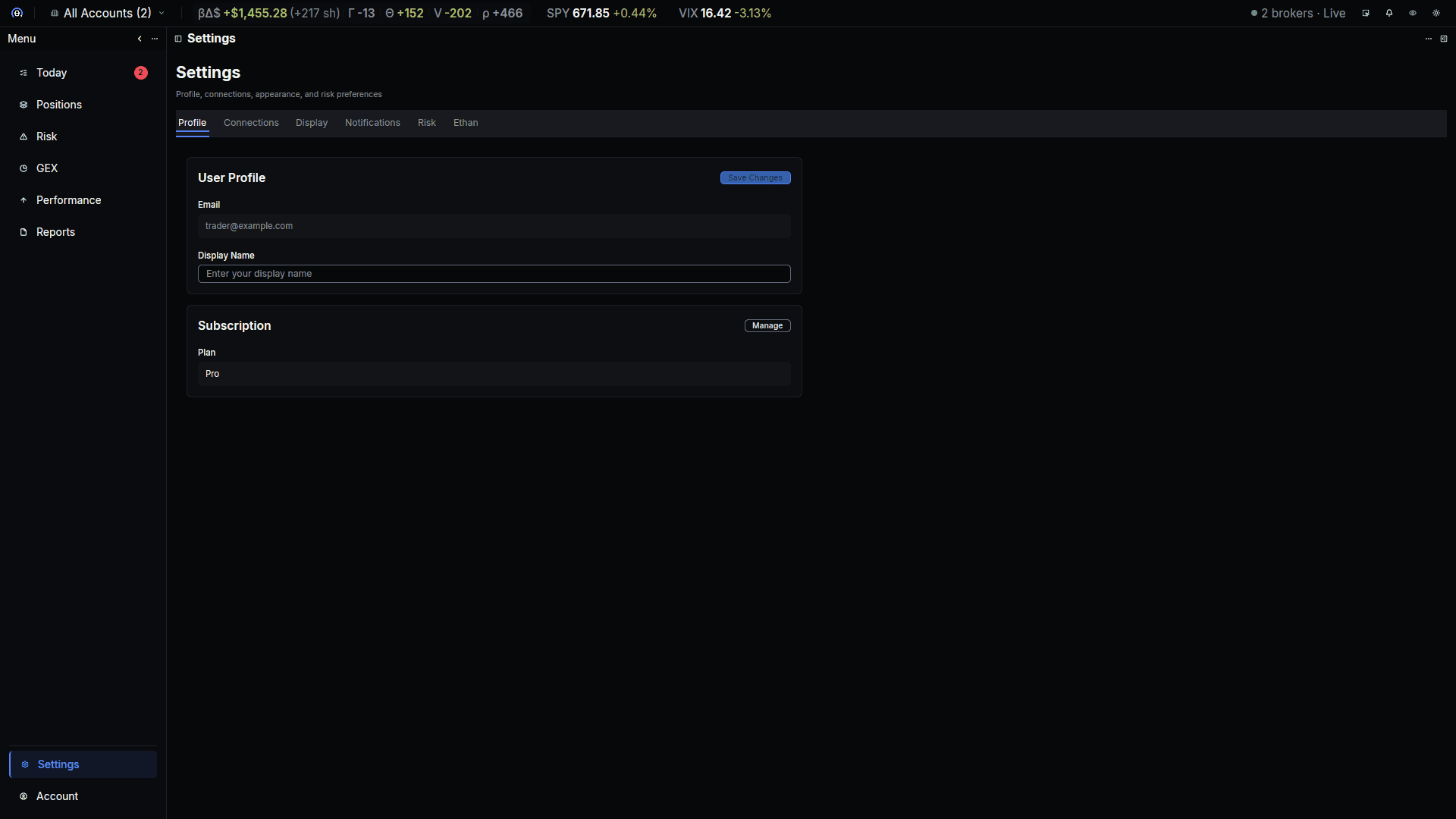
Profile shows the email you signed in with. The email is read-only here. You can change your Display Name, then press Save Changes. A "Profile saved successfully" message confirms the change.
Subscription shows your Plan as Base or Pro. A dash (—) shows while the plan is loading or could not be read. Manage opens thetawiz.com in your browser; plans and billing are handled on the website, not in the app. See Pricing.
Connections
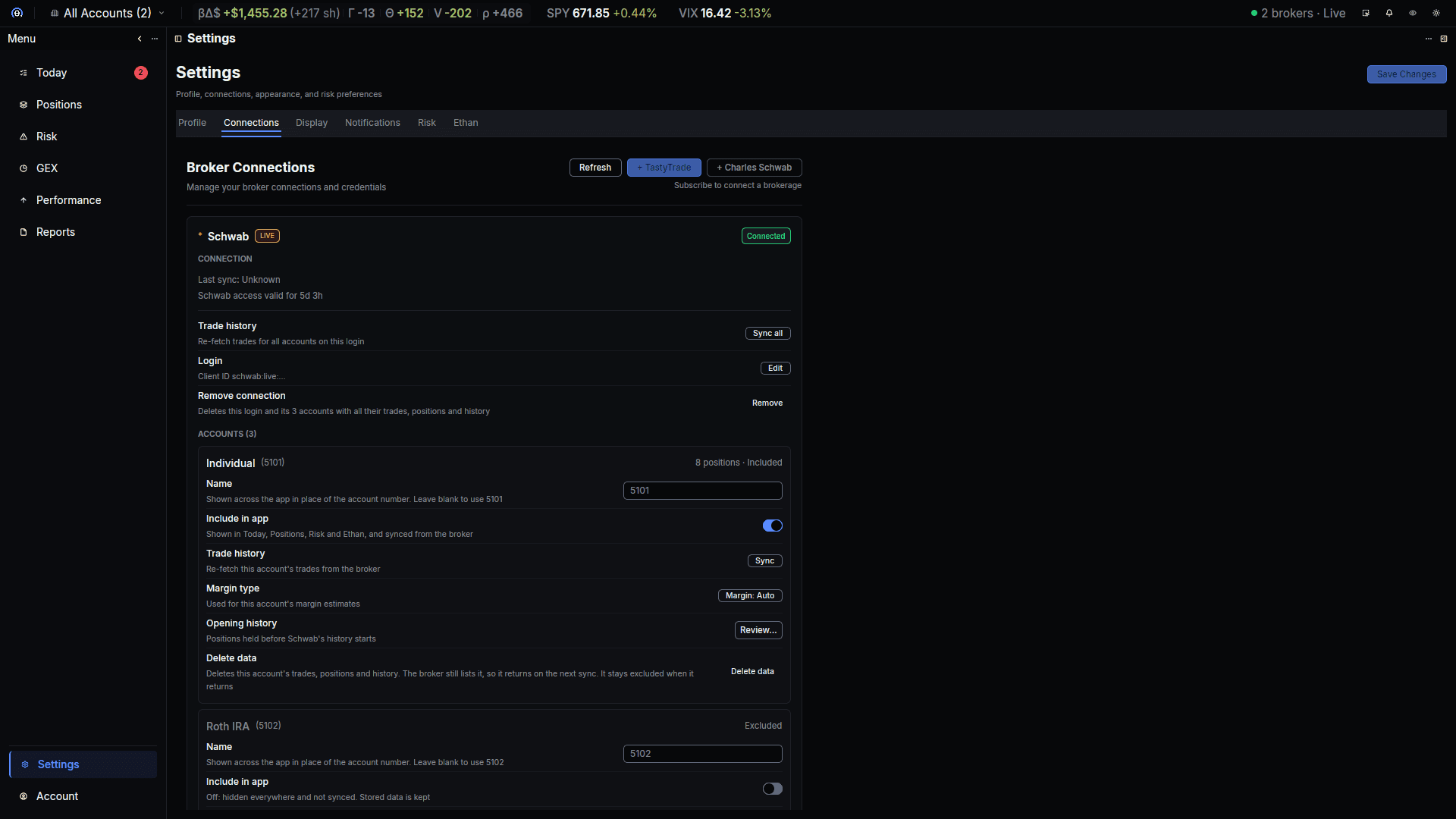
Connections (titled Broker Connections on the tab) lists each broker login as a card, with the accounts on that login inside it. For the full setup steps, including creating your API app, see Connect your broker.
At the top right are Refresh, + TastyTrade and + Charles Schwab. Refresh reloads the connections and their accounts. Sync in progress... shows next to the buttons while a sync runs. A line under the header reports the last sync of your strategy files and overrides (see Strategies and campaigns).
If your subscription or trial is not active, both add buttons are disabled and the tab shows "Subscribe to connect a brokerage". Your plan is shown under Profile.
Connection cards. Each card shows, from top to bottom:
- A header with the connection name, a LIVE or DEMO badge and a status badge. A
*before the name marks the primary login for that broker. - CONNECTION: the last sync and, on a Schwab card, how long your Schwab access is still valid.
- One labelled row per action. Each row says what the action does, with its button on the right.
- ACCOUNTS (N): one block for each broker account on this login.
| Badge | Meaning |
|---|---|
| Connected | The connection is working. |
| Connecting... | ThetaWiz is signing in to the broker. |
| Missing Credentials | The saved login is incomplete or missing. Use Reconnect or Edit. |
| Requires Re-auth | The broker needs you to sign in again. Use Reconnect. |
| Disconnected | The connection is not active. |
| A red error message | The last connection attempt failed; the badge shows the reason. Use Reconnect. |
| Row and button | When it shows | What it does |
|---|---|---|
| Reconnect → Reconnect | The connection failed, is missing credentials or requires re-auth | For tastytrade, retries your saved credentials first. If they are missing or rejected, it opens the connect dialog so you can enter them again. For Schwab, it opens the Schwab sign-in (re-consent). |
| Schwab access → Re-consent | A Schwab card with less than 48 hours of access left, or expired access | Opens the Schwab sign-in so you can approve access again. |
| Primary login → Set primary | The connection is connected and not already primary | Makes this the primary login for that broker. |
| Trade history → Sync all | The connection is connected | Re-fetches trades for all accounts on this login. Choose 30 days, 90 days, 1 year, 5 years or All history. When a range is longer than the broker allows, the menu names the limit, e.g. "All history (max 10 yrs)" for Schwab. The button reads Syncing… while it runs. A line under the row then reports the result and the time, e.g. Checked 412 trades (1 year): 3 new. |
| Login → Edit | Always | Shows the masked Client ID. Edit opens the connect dialog for this connection so you can change its details. |
| Remove connection → Remove | Always | The row says what will go, e.g. "Deletes this login and its 2 accounts with all their trades, positions and history". Remove asks you to confirm with Cancel or Remove. |
Removing a connection asks: "Remove this connection? This permanently deletes its saved login and all of its trade history, accounts and cash flows. This cannot be undone." Nothing changes at your broker. Your broker account and its positions are untouched.
Re-consent (Schwab). Schwab's sign-in lasts about 6.5 days and cannot be renewed in the background. Each Schwab card shows its own line under CONNECTION: "Schwab access valid for …". When less than 48 hours are left it reads "Schwab access expires in …", and after expiry "Schwab access expired — re-consent to restore Schwab data". In those two states the line moves into a Schwab access row with a Re-consent button. It opens the same Schwab sign-in as + Charles Schwab. If a saved Schwab login could not start at all, it has no card; its message and Re-consent button show in a banner at the top of the tab instead.
Accounts. Each account block has a header with the account's name, its short number in brackets when you have named it, and on the right its position count and Included, or Excluded. Its rows:
| Row | When it shows | What it does |
|---|---|---|
| Name | Always | A name shown across the app in place of the account number. Type it and press Enter or click away to save. Clear the field to go back to the short account number. The name is saved to your ThetaWiz account, so it shows on every computer you sign in on. You can also rename an account from the By Account table on Today. |
| New account → Dismiss | An account ThetaWiz added switched off (see New accounts below) | Clears the New badge and leaves the account off. |
| Include in app (switch) | Always | On: the account is shown in Today, Positions, Risk and Ethan, and synced from the broker. Off: it is hidden everywhere and not synced, and its stored data is kept. Switching an account on backfills its trade history. The switch is locked while a sync is running, and the last included account on a login cannot be switched off. |
| Trade history → Sync | The account is included and its login is connected | Re-fetches this account's trades from the broker, with the same ranges as Sync all. |
| Margin type | The account is included | The margin type ThetaWiz uses for this account's margin estimates. Auto uses the type your broker reports, shown as e.g. "Margin: Auto (Reg T)". You can also pick Reg T, Portfolio Margin, IRA or Cash. |
| Opening history → Review… | An included Schwab account | Review or add positions you opened before Schwab's trade history starts. See Opening history. |
| Delete data → Delete data | Always; disabled while a sync is running | Deletes this account's trades, positions and history from ThetaWiz. The broker still lists the account, so it comes back on the next sync. The confirmation asks "Delete this account's data?" and offers Cancel, Switch off instead and Delete data. |
To keep an account out of ThetaWiz, switch Include in app off. Delete data clears what is stored, but the account returns on the next sync.
New accounts. If you have switched off an account on a login and the broker later reports another account on that login, ThetaWiz adds the new one switched off. The card's accounts heading shows e.g. 1 new account — off, and the account carries a New badge and a New account row. Turn Include in app on to use it, or press Dismiss to leave it off.
Accounts not linked to a login. Stored accounts that no current login owns are listed in a last card with this title. An account is linked to its login the next time that login syncs.
Display
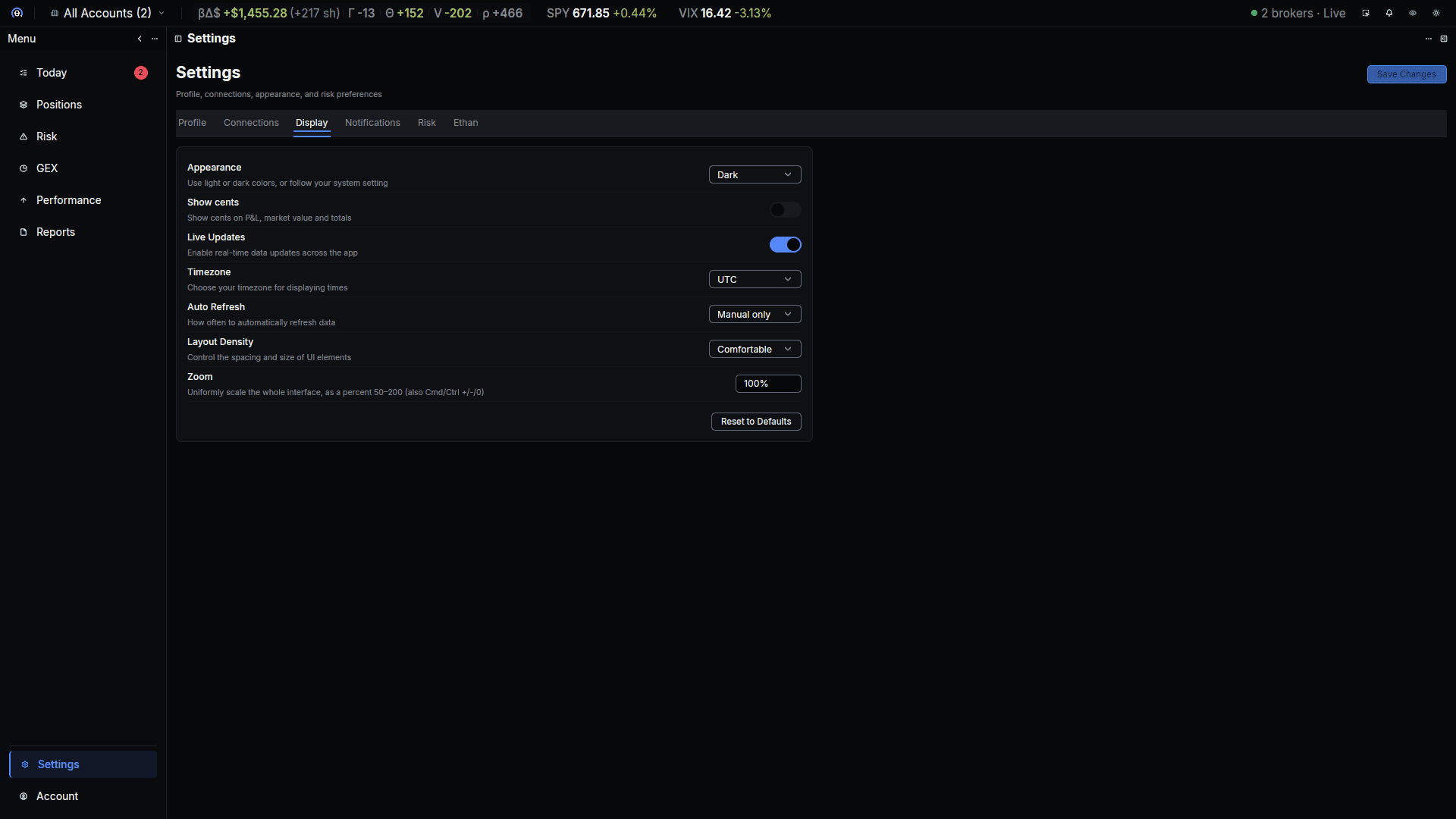
| Setting | What it does | Options / default |
|---|---|---|
| Appearance | Uses light or dark colors, or follows your system setting. The sun and moon icon at the right of the header also switches between light and dark. | System, Light or Dark. Default System. |
| Show cents | Shows cents on P&L, market value and totals. When off, these show whole dollars. | Off by default. |
| Live Updates | Meant to turn real-time updates on or off. In this release the choice is saved but has no effect: live data keeps streaming either way. | On by default. |
| Timezone | Meant to set the timezone for displayed times. In this release the choice is saved but has no effect: times show in your computer's own timezone. | Eastern, Central, Mountain, Pacific or UTC. |
| Auto Refresh | Meant to set how often data refreshes. In this release the choice is saved but has no effect, and Manual only does not stop refreshing. To change how often positions refresh, use Positions refresh (secs) under Settings → Risk. | 15 seconds, 30 seconds, 1 minute, 5 minutes, 30 minutes or Manual only. Default 30 minutes. |
| Layout Density | Spacing and size of UI elements. | Compact or Comfortable. Default Comfortable. |
| Zoom | Scales the whole interface. | 50 to 200 percent. Default 100. Also Ctrl + / - / 0 (Cmd on macOS). |
Reset to Defaults resets Live Updates, Timezone, Auto Refresh and Layout Density. Press Save Changes to keep the reset.
Appearance used to be its own tab; it now lives on Display. A Color Theme choice appears under Appearance only when more than one theme family is available. This release ships one, so the row is hidden.
On a narrow window, ThetaWiz switches to Compact density automatically. Your saved choice comes back when the window is wide again.
Notifications
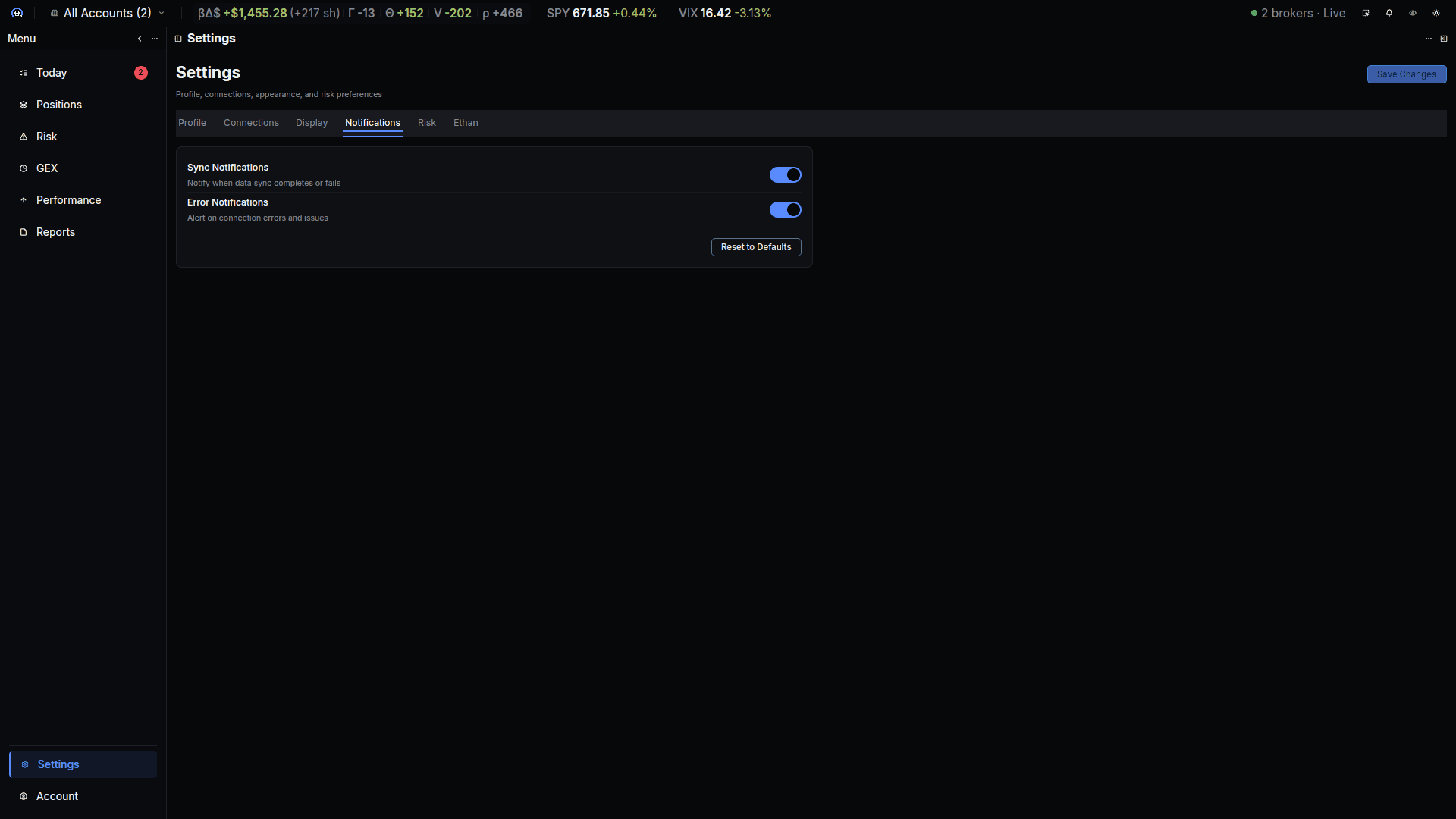
- Sync Notifications: meant to notify when a data sync completes or fails. On by default.
- Error Notifications: meant to alert on connection errors and issues. On by default.
In this release both switches are saved but have no effect yet: sync and connection notifications appear whether they are on or off.
Reset to Defaults turns both back on. Press Save Changes to keep your choices.
Risk
The Risk tab holds the thresholds behind ThetaWiz's flags, profit targets, stops and GEX windows. Edit a value and press Save Risk Settings. A value that fails validation shows its reason under the field, such as "must be between 0 and 100", and nothing is saved until you fix it. "Settings saved." confirms a save.
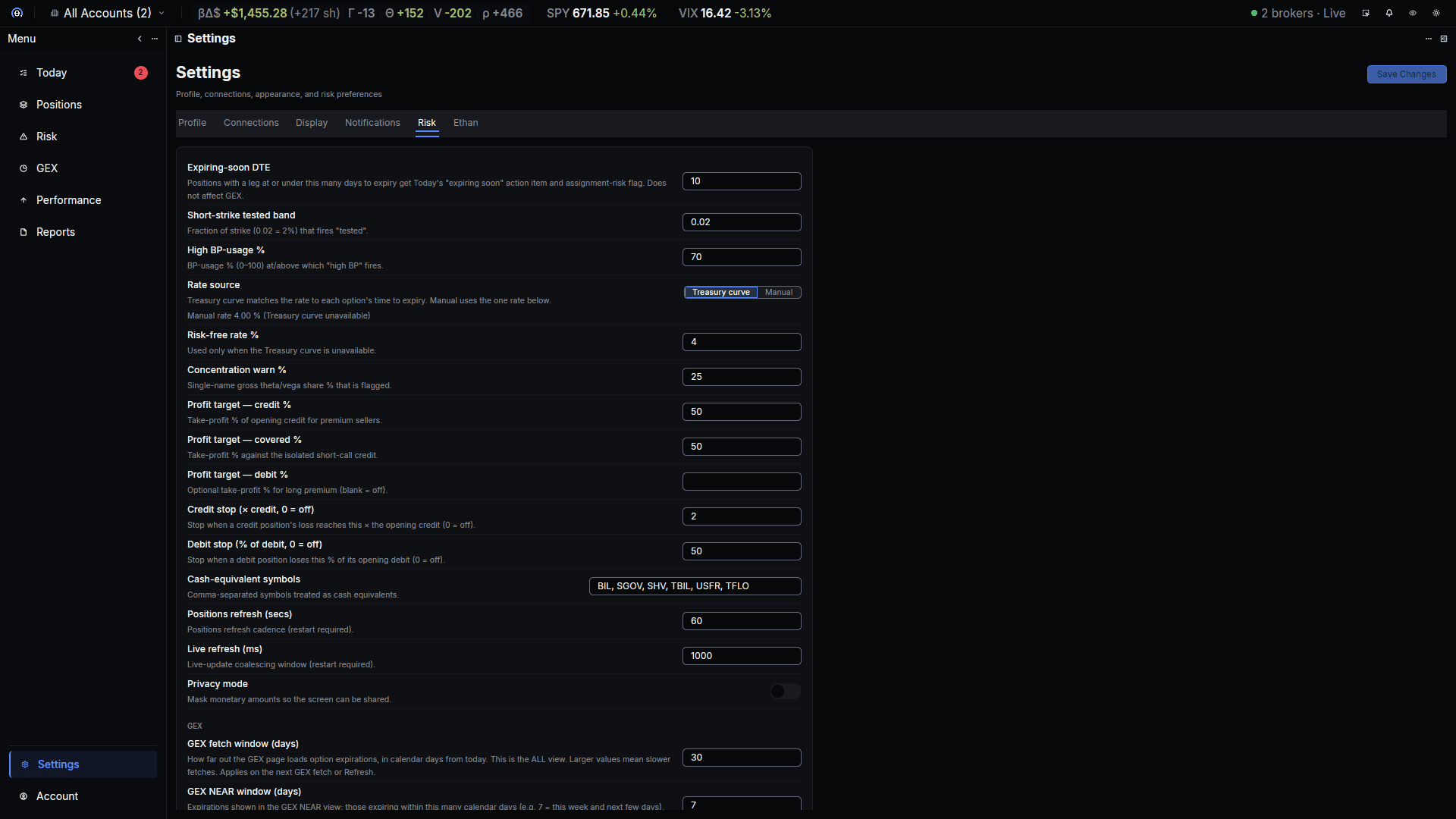
| Setting | What it does | Default | Allowed |
|---|---|---|---|
| Expiring-soon DTE | Positions with a leg at or under this many days to expiry get Today's "expiring soon" action item and the assignment-risk flag. Does not affect GEX. | 7 | Whole number ≥ 0 |
| Short-strike tested band | How close the underlying must be to a short strike, as a fraction of the strike, before it counts as "tested". 0.02 = 2%. | 0.02 | 0 to 1 |
| High BP-usage % | Buying-power usage at or above this percent raises the "high BP" flag. | 80 | 0 to 100 |
| Rate source | Where option pricing takes its risk-free rate. Treasury curve matches the rate to each option's time to expiry, using the daily U.S. Treasury curve. Manual uses the one rate in the next row. | Treasury curve | Treasury curve or Manual |
| Risk-free rate % | With Manual, the annual risk-free rate used for all option pricing. With Treasury curve, used only when the Treasury curve is unavailable. | 4 | 0 to 100 |
| Concentration warn % | A single name's share of gross theta or vega above this percent is flagged. | 50 | 0 to 100 |
| Profit target — credit % | Take-profit point for premium-selling positions, as a percent of the opening credit. | 50 | 0 to 100 |
| Profit target — covered % | Take-profit point for covered calls, measured against the short call's credit alone. | 50 | 0 to 100 |
| Profit target — debit % | Optional take-profit for long premium, as a percent return on the debit. Leave blank for off. | Off (blank) | Blank, or 0 to 1000 |
| Credit stop (× credit, 0 = off) | Flag a credit position when its loss reaches this multiple of the opening credit. | 2 | 0 to 10 |
| Debit stop (% of debit, 0 = off) | Flag a debit position when it has lost this percent of its opening debit. | 50 | 0 to 100 |
| Cash-equivalent symbols | Comma-separated symbols treated as cash equivalents. | BIL, SGOV, SHV, TBIL, USFR, TFLO | Any symbols |
| Positions refresh (secs) | How often positions refresh. Needs a restart. | 60 | Whole number ≥ 1 |
| Live refresh (ms) | How long ThetaWiz gathers live updates before redrawing. Needs a restart. | 1000 | Whole number ≥ 1 |
| Privacy mode | Masks monetary amounts so you can share your screen. | Off | On / off |
| GEX fetch window (days) | How far out, in calendar days, the GEX page loads expirations. This is the ALL view. Larger values fetch more slowly. | 30 | Whole number ≥ 0 |
| GEX NEAR window (days) | The GEX NEAR view shows expirations within this many calendar days. Capped by the fetch window. | 7 | Whole number ≥ 1 |
- Most changes, Rate source included, apply to the running session as soon as you save.
- The two GEX windows apply on the next GEX fetch or Refresh. See GEX.
- Positions refresh and Live refresh take effect after you restart ThetaWiz. Until then, a Restart required badge sits next to the field.
- Privacy mode can also be toggled at any time with the eye icon in the header or
Ctrl+P(Cmd+Pon macOS).
Rate source status. A line under Rate source names the rates in use:
| Status line | Meaning |
|---|---|
Treasury curve, 2026-11-16 (1 business day old) | The U.S. Treasury curve for that date. Treasury publishes it once per business day, so one day old is normal. |
FRED, … | Treasury's curve could not be fetched, so the rates came from FRED, the St. Louis Fed's data service. |
Treasury curve from cache, … — stale | Neither source could be reached. ThetaWiz is using the last curve it saved. |
Manual rate 4.00 % (Treasury curve unavailable) | No curve is available, so Risk-free rate % is used. |
Manual rate 4.00 % | Rate source is set to Manual. |
A Stale badge shows next to the line when the curve comes from the cache or is more than 3 business days old.
If the settings file cannot be read, the save is blocked with "config could not be parsed — fix it manually" rather than overwriting it. If no settings folder can be found, the message is "no config directory found — cannot locate a config file to save settings to".
Ethan
The Ethan tab sets up the AI assistant: which provider and model it uses and how it connects. See Ethan for the full guide.
Disclaimers & About
Open Account at the bottom of the left rail and choose Disclaimers & About, or press Ctrl+7 (Cmd+7 on macOS). The page explains how ThetaWiz calculates its numbers and their limits. It has these sections:
- Important Legal Disclaimer
- Greeks Calculation Methodology
- Extrinsic Exposure Calculation
- Buying Power & Risk Metrics
- Data Latency & Accuracy
For the formulas in full, see How the numbers are calculated.
Log out
Open Account at the bottom of the left rail and choose Log out…. A dialog asks "Log out?" and explains "You will be signed out of ThetaWiz on this device." Press Log out to confirm. Cancel, Esc or a click outside the dialog keeps you signed in.